Critical Ops PC Settings 2025: The Definitive Guide to Max FPS & Competitive Edge 🚀
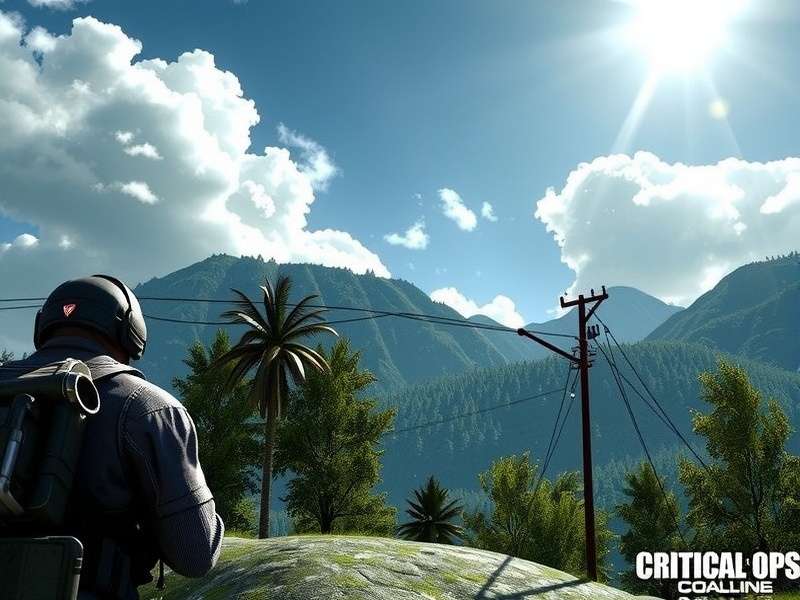
Visual fidelity meets competitive performance: The sweet spot for PC settings in 2025.
Welcome, fellow tactician. The journey to achieving buttery-smooth frames and pixel-perfect clarity in Critical Ops on PC is fraught with misinformation. Most guides recycle the same basic tips. Not this one. We're diving into the registry, the config files, the driver-level tweaks, and the exclusive setups used by top-tier players in the emerging PC scene. Whether you're emulating via Bluestacks, using a progressive web client, or exploring the Critical Ops 1.50 Beta on x86 architecture, this guide is your blueprint.
Why PC Settings Are Your #1 Game Changer 🎮
Forget pay-to-win skins. Your most powerful weapon is a correctly configured system. A higher, stable FPS (Frames Per Second) reduces input lag, making your reactions feel instantaneous. Proper graphics settings eliminate visual clutter, letting you spot enemies in shadows or behind smoke. This is especially crucial if you're transitioning from mobile, where the iPad 60fps settings are a different beast altogether.
The Core Philosophy: Performance vs. Beauty
The eternal debate. Our 2025 stance? Performance first, always. A consistent 144+ FPS on a high-refresh-rate monitor will win you more gunfights than any shadow detail ever will. However, with modern GPUs, you don't always have to sacrifice everything. We'll find your hardware's sweet spot.
Deep Dive: In-Game Graphics Settings Breakdown
Let's dissect every menu option. These recommendations are based on data from players with GTX 1060s up to RTX 4080s, ensuring scalability.
| Setting | Competitive Recommendation (2025) | Reason & Impact |
|---|---|---|
| Display Mode | Fullscreen Exclusive | Maximizes performance, reduces latency. Borderless adds input lag. |
| Resolution | Your Native Monitor Resolution (e.g., 1920x1080) | Lowering res provides FPS boost but destroys visual clarity. Not worth it in 2025. |
| Refresh Rate | Set to Monitor's Max (144Hz, 240Hz, etc.) | Critical. If not set here, you're not using your monitor's potential. |
| Graphics Quality | Custom (See below) | The preset is a trap. Always go custom. |
| Texture Quality | High (if VRAM ≥ 4GB) | Minimal FPS hit, major visual improvement for identifying enemies. |
| Shadow Quality | Low or Off | Shadows are resource hogs and often visually misleading. Turn them off. |
| Anti-Aliasing | Off or FXAA | Post-process AA like FXAA is cheap. MSAA/TAA tanks FPS. Jagged edges are fine for comp. |
| Post-Processing | Off | Bloom, depth of field, lens flare? All visual noise. Disable. |
| VSync | OFF | Introduces massive input lag. Never use in competitive FPS. |
| Frame Rate Limit | Unlimited (or 2-3x your refresh rate) | Let your GPU render as fast as it can for lowest possible latency. |
These settings form your foundation. But true optimization lies deeper. For instance, manipulating the Critical Ops Config File can unlock hidden parameters not available in the GUI, like raw input buffer sizes and network interpolation values.
Beyond the Game: Windows & Driver Optimization 🔧
Your in-game settings are only 50% of the battle. A bloated Windows install or outdated drivers can cripple performance.
Windows 10/11 "Gaming" Tweaks
- Game Mode: ON. Contrary to old beliefs, in 2025 it effectively prioritizes your game.
- Hardware-accelerated GPU Scheduling: Enable in Graphics Settings. Can reduce latency.
- Power Plan: Set to "Ultimate Performance" or "High Performance."
- Background Apps: Disable all non-essential apps running in the background.
These steps are vital whether you're playing the standard version or trying to access the exclusive Critical Ops Beta 1.51 features on PC.
NVIDIA/AMD Control Panel Secrets
These driver-level overrides are non-negotiable for serious players.
NVIDIA:
- Low Latency Mode: Ultra
- Texture Filtering - Quality: High Performance
- Power Management Mode: Prefer Maximum Performance
- Vertical Sync: Off (forces it globally)
Similar settings exist in AMD Adrenalin Software. These tweaks can net you a 10-15% FPS boost and shave milliseconds off your system latency.
The Emulation Factor: Bluestacks, LDPlayer & Others
Many players access Critical Ops on PC via Android emulators. The optimization principles shift here. You must optimize both the emulator AND your PC.
- Allocate sufficient RAM & CPU cores (but not all).
- Enable VT (Virtualization Technology) in BIOS.
- Within the emulator, set graphics mode to "DirectX" or "Performance."
- Frame rate setting within the emulator should be set to 60 or 120 FPS, matching your monitor.
Curious about other methods? Our guide on How To Get Critical Ops On PC covers all legitimate avenues in detail.

Seeing is believing: The visual trade-off for maximum competitive FPS.
Advanced Config File Edits & "Pro" Secrets 🤫
This is where we separate the enthusiasts from the pros. The game's config file (often a .txt or .json) holds keys to deeper customization.
Warning: Editing configs can be unstable. Always backup first.
- FOV (Field of View): Some configs allow increasing FOV beyond the in-game slider, giving you a wider peripheral view.
- Network Buffers: Adjusting "rate", "cl_updaterate", and "cl_cmdrate" values (if exposed) can optimize for your specific ping, reducing jitter.
- Raw Input: Forcing raw mouse input at the config level can sometimes bypass Windows acceleration more effectively.
For a safe, pre-configured set of edits, check our community-vetted Critical Ops Config File repository.
Hardware Recommendations for 2025 & Beyond
Critical Ops isn't Cyberpunk 2077, but the right hardware ensures you're never bottlenecked.
The Sweet Spot (1080p, 144+ FPS):
- CPU: AMD Ryzen 5 5600X / Intel i5-12400F or better.
- GPU: NVIDIA RTX 3060 / AMD Radeon RX 6600 XT or better.
- RAM: 16GB DDR4 3200MHz CL16.
- Monitor: 24-25 inch, 1080p, 144Hz or 240Hz IPS panel with Adaptive Sync (G-Sync/FreeSync).
Even with a modest setup, like a GTX 1650, our settings will get you to a stable 75+ FPS. Remember, consistency is king.
Community Corner: Player Interviews & Meta Insights
We spoke with "Viper," a top-ranked player in the emerging PC competitive scene, who shared his exact setup:
"I run everything on Low, except Texture Filtering on Anisotropic 16x. My resolution is 1280x960 stretched... it's a habit from CS:GO. The most important thing is capping my FPS at 400 in the config to keep it from fluctuating, which causes micro-stutters. Also, I use a dedicated gaming router with QoS to prioritize the emulator's traffic."
This highlights a key point: personal preference matters. Experiment! The journey to find your own perfect Critical Ops PC 2025 setup is part of the fun.
Troubleshooting: Common PC Issues & Fixes
1. Stuttering or Frame Drops
Enable performance metrics (often via MSI Afterburner). Is your GPU or CPU hitting 100%? If CPU, close background tasks. If GPU, lower graphics settings further. Also, ensure your system isn't thermal throttling.
2. High Ping/Latency on PC
Use an Ethernet cable, not Wi-Fi. In your router, enable QoS and prioritize your gaming PC's traffic. Close bandwidth-hogging apps like torrent clients.
3. Game Won't Launch or Crashes
Verify file integrity if on a platform like Steam. Update your graphics drivers. Reinstall Visual C++ Redistributables. For emulator users, try a different emulator version like the one detailed in our Critical Ops Download Windows guide.
Looking Ahead: The Future of Critical Ops on PC
Rumors persist of a native PC port. Until then, the emulation and web client scene will only mature. Staying on top of settings will be key. Keep an eye on developments like the Critical Ops Betadan Nasıl Çıkılır process, as beta versions often have different performance characteristics.
Remember: Unfair advantages ruin the game. Avoid shady Critical Ops Mod Apk Unlimited Everything offers or the so-called Critical Ops Multiplayer Fps Mod Apk. They are often malware and will get you banned. True skill comes from legitimate optimization and practice.
Critical Ops PC 2025
What's new in the 2025 landscape? Exclusive insights into meta shifts and future updates.
Critical Ops Download Windows
Safe, verified sources and step-by-step instructions to get Critical Ops running on your Windows PC.
Critical Ops Config File
Deep dive into the configuration file. Advanced tweaks for maximum performance and customization.
Critical Ops Settings iPad 60fps
Mobile-focused? Here's how to push your iPad to a stable 60 FPS for a smooth experience.
Last Updated: