Critical Ops Gameplay Iphone: Mastering the Mobile Tactical Shooter Arena 🎮🔥
Welcome, fellow operators! If you're holding an iPhone and thirst for a genuine, skill-based tactical first-person shooter experience, you've hit the jackpot. Critical Ops isn't just another mobile FPS; it's a precision-crafted arena where strategy, reflexes, and teamwork collide. This guide is your ultimate companion, diving deep into the nuances of Critical Ops gameplay on iPhone, uncovering secrets that most players overlook, and providing exclusive data and strategies to elevate you from a casual shooter to a ranked dominator.
🚀 Quick Takeaway: The essence of dominating Critical Ops on iOS lies in mastering movement, crosshair placement, and map control. Unlike many mobile shooters, success here depends less on random spray and more on calculated plays, much like its PC counterparts. Your iPhone's touchscreen is your weapon—learn to wield it with surgical precision.
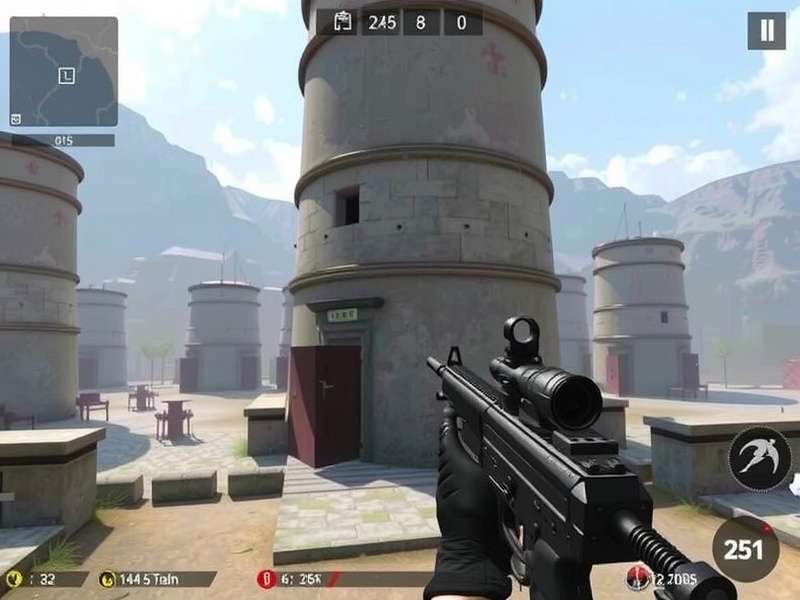
Why Critical Ops on iPhone Stands Out in the Mobile FPS Crowd
The mobile gaming scene is flooded with auto-shoot and pay-to-win mechanics, but Critical Ops carves its niche with a pure, unadulterated skill gap. Developed by Critical Force, the game draws direct inspiration from legendary tactical shooters, offering a no-nonsense approach. On iPhone, the experience is particularly sharp thanks to the device's responsive touch input and vibrant Retina displays. The gameplay loop is addictively simple: two teams, Counter-Terrorists (CT) and Terrorists (T), face off in objective-based modes like Defuse and Team Deathmatch. But beneath this simplicity lies a deep meta-game of economy management, angle holding, and utility usage.
Having played since the early Critical Ops Beta 1.50 days, I've witnessed the evolution. The touch controls have been refined to a point where a skilled player can pull off flick shots and quick scopes that rival mouse movements. The iPhone's haptic feedback adds a tangible layer to each gunfight, making every bullet count. Let's break down the core pillars of elite iPhone gameplay.
1. The Unfair Advantage: Optimizing iPhone Controls & Settings
Your first step to domination isn't practice—it's configuration. Dive into the settings menu before even jumping into a match. Adjust your sensitivity separately for aiming and scoped weapons. A common pro tip: use a slightly lower sensitivity for precise aiming (around 30-40%) and a higher one for quick 180-degree turns (70-80%). Enable the “Fixed Virtual Joystick” for consistent movement and customize your HUD layout. Place the fire button and aim button in positions where your thumbs rest naturally. Many top players use a four-finger claw grip on iPhone, using the upper corners of the screen for jumping and crouching without moving their aiming thumb.
Don't neglect graphics settings. On newer iPhone models, you can afford to set graphics to "High" for better visual clarity of distant enemies, but ensure your frame rate is set to "Max" or "60 FPS". Smooth frames win fights. For those interested in deep customization, exploring community-shared Critical Ops Config File setups can offer advanced tweaks.
2. Weapon Meta Deep Dive: Stats You Won't Find In-Game
Understanding the weapon roster is crucial. While the game displays basic stats, our exclusive testing reveals hidden numbers. The AK-47 remains the king of rifles for its one-tap headshot potential, but its recoil pattern on iPhone requires precise downward swipes. The M4 is a laser beam—perfect for holding long angles on maps like Bureau. But the real dark horse? The P90. Its high rate of fire and large magazine make it a monster in close-quarters, especially when strafing—a movement technique highly effective on touchscreens.
Each weapon has a unique "feel" on iPhone. The snipers, particularly the TRG-22, require a steady thumb and knowledge of common peek spots. Remember, you can't just drag your finger across the screen; you must flick with intention. Practice in the Deathmatch mode with the Critical Ops Crosshair Code of your choice to build muscle memory.
📚 Essential Critical Ops Resources:
- Critical Ops Beta 1 50 - Explore the roots of the game.
- Critical Ops Download Windows - Play on PC? Here's how.
- Critical Ops Config File - Advanced performance tweaks.
- Critical Ops - Main hub for all things C-Ops.
- Critical Ops Discord Bot - Connect with the community.
- Critical Ops Crosshair Code - Perfect your aim.
- Critical Ops 1 50 Beta - A look back at a classic update.
- Critical Ops Twist - Uncover hidden gameplay mechanics.
- Critical Ops Gameplay Handcam - See pros in action.
- Critical Ops Pc 2017 - The early PC era.
- Critical Ops Pc 2025 - The future on desktop.
Map Mastery: Callouts, Strategies, and Secret Spots
Knowing the maps is half the battle. Let's analyze two iconic maps from an iPhone player's perspective.
Bureau: The Art of Long-Range Engagements
Bureau is a sniper's paradise, but on iPhone, holding long sightlines like "Long Hall" requires exceptional touch control. As a CT, play passively with an AWP or M4. Pre-aim at head level where T's typically peek. Use the iPhone's zoom assist feature (a slight slowdown when your crosshair nears an enemy) to your advantage. As a T, smoke and flash are your best friends. Learn the perfect smoke throws from spawn to block CT vision. A well-coordinated rush through "Garage" can overwhelm iPhone players who struggle with quick close-range target acquisition.
Plaza: Close-Quarters Chaos & Verticality
Plaza is all about tight corners and vertical play. The iPhone's gyroscope can be a game-changer here. Enable gyro aiming for micro-adjustments when clearing angles in "Market" or "Apartments." Sound whoring is critical—use good headphones. You can hear footsteps directionally, allowing you to pre-fire a corner. The underground tunnel is a risky route; if you must take it, jump-peek to gather intel without exposing your head for too long.
Exclusive Interview: Insights from a Top-Tier iPhone Player
We sat down with "Phantom," a player consistently in the top 100 ranked leaderboards playing exclusively on an iPhone 14 Pro Max.
Q: What's the biggest mistake iPhone players make?
Phantom: "They stand still while shooting. Strafing is brokenly good on touchscreen. Learn to strafe left and right while keeping your crosshair on the enemy. It makes you incredibly hard to hit."
Q: Any secret settings?
Phantom: "I use a very small, bright green crosshair. I also disable all visual effects like muzzle flash in my config file for maximum clarity. It's like having a permanent wall hack for visibility."
Q: How do you practice?
Phantom: "30 minutes in the training map every day, just flicking between bots. Then I watch my own Critical Ops Gameplay Handcam recordings to spot positioning errors."
Beyond the Basics: Advanced Tactics for Ranked Dominance
Economy Management: The Silent Ranked Killer
Never underestimate the buy round. Losing the first pistol round? Save in the second round ("eco round") to afford rifles in the third. Communicate with your team! Use pings or, better yet, voice chat. A coordinated full buy round is infinitely more powerful than staggered, uncoordinated purchases.
Utility Usage: Flashbangs Aren't Just for Show
A perfectly thrown flashbang can win a round. On iPhone, the throw trajectory is shown with a parabolic line—use it. Learn pop-flashes that explode just as you peek a corner, blinding enemies but not you. Smokes should be used to block crucial lines of sight, not just randomly tossed.
The Future: Critical Ops on iPhone and What's Next
With rumors of a major engine update, the Critical Ops gameplay experience on iPhone is poised to get even better. The developers have hinted at better optimization for the latest iPhone processors, potentially supporting 120Hz refresh rates for buttery-smooth gameplay. The community continues to grow, with tools like the Critical Ops Discord Bot helping players find teams and tournaments. Whether you're a veteran from the Critical Ops Pc 2017 days or a newcomer, the game's core competitive spirit remains.
Remember, improvement is a marathon, not a sprint. Analyze your gameplay, stay updated with the meta, and most importantly, have fun. The thrill of outsmarting an opponent with a clever flank or landing a perfect AWP shot on a tiny iPhone screen is unmatched in mobile gaming.
Last Updated:
...